

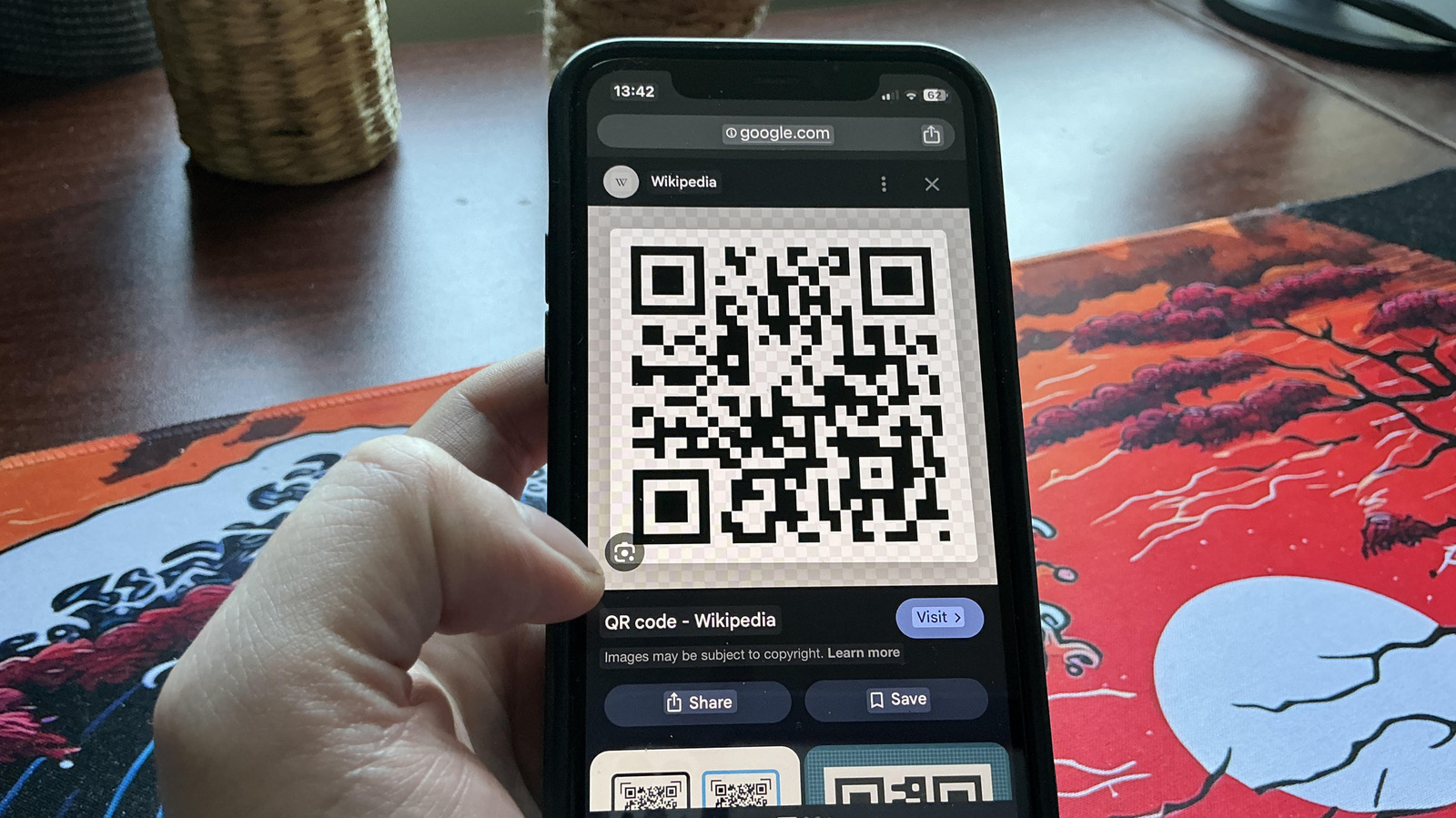
Android and iOS both have built-in tools to easily open QR codes from screenshots.
Dave Meikleham for Engadget
You probably think you need to use your smartphone’s camera to scan a QR code, right? That’s not the case — it’s entirely possible (and super-easy) to scan a “Quick-Response” code that’s already saved on your mobile device. The actual scanning process varies a little depending on whether you’re using Android or iOS, but it remains a simple process either way.
Essentially, all you need to do is to take a screenshot of a QR code, then access it via your phone’s gallery. The steps after that are surprisingly simple, regardless of whether you’re Team Android or Team Apple. We’ll break down the precise steps below, before schooling you on how to scan QR codes with the likes of Google Lens.
How to scan a QR code that’s saved on your phone
Stefano Mazzola/Getty Images
The “trickiest” part of scanning a QR code you have saved on your smartphone is that it requires the use of two fingers. An appalling mountain to hurdle, no question. All you have to do is take a screenshot of that code that may have tickled your fancy. On the newer iPhones (or even most aging ones), hold the wake button and hit volume up until you see an onscreen flash to take a snap. As for Android devices, hold the power button and volume down to cue up a similar flash.
From here, it’s just a question of navigating to your device’s image gallery. On an iPhone, once you’ve selected the screenshot of the QR code, you’ll see a small blue badge with three teeny lines that appears a little above the trash icon and an accompanying URL to its left. After you see the badge, click the QR code again, where you’ll be given the option of opening it in the browser of your choice. The process is similarly easy on Android phones. After selecting the QR code screenshot, simply click the Lens icon. Hey presto! You’ve just scanned a QR code that was saved on your phone.
Use Circle to Search on Android devices to scan QR codes
Asiavision/Getty Images
Many Android devices can also use Circle to Search to help you scan a QR code without the assistance of a camera, like select Google Pixel and Samsung Galaxy models. If you own a relatively recent Android phone, this feature should be automatically enabled, but if it’s not, it’s easy to turn on if your device supports it. To activate Circle to Search, open Settings from your home screen, then use the search bar to find “Circle to Search”. Should your device support the feature, a toggle will appear allowing you to enable this handy QR code scanning method.
Once you’re good to go with Circle to Search, hold down the home button to fire it up. A Google Search bar should then pop up on the bottom of your device’s screen, along with a little animation. It’s then just a case of going to a QR code that you’ve found on the web or have saved on your device and circling it with your finger. Yup, this really is one of those “does exactly what it says on the tin” features.
Google Lens can help with QR codes too
Azulblue/Shutterstock
The Big G also provides another way to scan codes you may have saved on your phone. While Google Lens obviously works most seamlessly on Android devices, you can also take advantage of its scanning abilities if you have either the Google app or Google Photos installed on an iPhone.
On Android phones, simply tap the Lens icon that appears in a Google search bar. Alternatively, you can also open Lens through the Google app. Once you select the image of the QR code that’s saved in your galley, Google Lens will work its magic, analyze said code, before providing you with a subsequent link to click on.
The methods above show that scanning QR codes that are already saved on your phone is oh so easy. Still, that doesn’t mean you shouldn’t always show diligence when dealing with codes. You need to be wary of the usual phishing red flags to avoid QR code attacks, so please only scan codes from sources you trust.
