

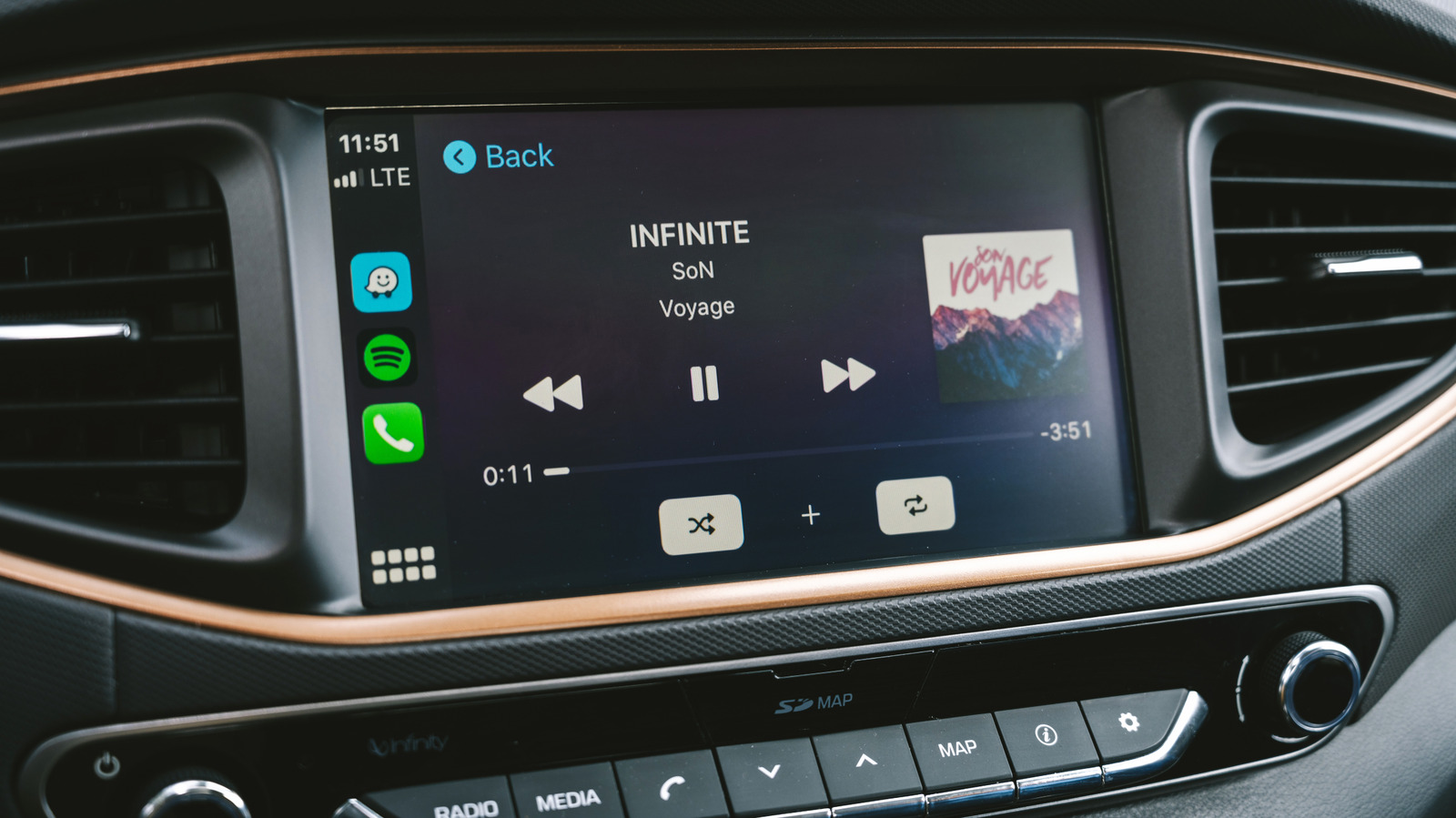
CarPlay is great for listening to music on the go, but a few tweaks will help it sound even better in your car.
A. Aleksandravicius/Shutterstock
Apple CarPlay gives you an easy solution for playing your favorite music from Spotify or Apple Music in your vehicle. However, it isn’t guaranteed to give you the best sound your car can produce. Your iPhone might feed the stereo a lower-quality stream than you expect, with settings that sound great through your headphones but awful through your car speakers.
There’s no magic solution for this, given how much variance there is between car speakers. The quality of the original music will obviously play its part, but the way your iPhone connects to your car has an impact, too. Rather than upgrading your speaker system right away, you can try some straightforward changes to improve the audio quality when using Apple CarPlay.
Wired CarPlay gives you lossless audio
Harry Howitt/Shutterstock
Wireless CarPlay is the most convenient option for most people. You don’t even have to get your iPhone out of your pocket for your car to connect and start playing your favorite songs. Unfortunately, it isn’t the best option for those who demand the best music quality.
Take it from Apple: wired is best for your music. Apple’s guidelines for Apple Music through CarPlay confirm that only a wired USB connection will allow you to play lossless audio. Lossless audio is compressed without throwing away any of the original audio data, meaning you’re not losing detail. A wired connection means you can switch to lossless streams, as long as you have an active Apple Music subscription and have enabled this option.
Technically, it’s all down to the codec. Apple uses LPCM for audio on wired CarPlay connections, but switches to AAC-LC when using wireless CarPlay. LPCM carries uncompressed digital audio, so a lossless ALAC track from Apple Music can be passed to your car without lossy compression. Wireless CarPlay has to encode the audio into AAC-LC first, using lossy compression to reduce the bitrate and discarding some of the original audio data in the process.
The end result is lower-quality audio, but that doesn’t mean wireless CarPlay automatically sounds bad. Whether you hear the difference will depend on your car’s sound system and your ears. The speakers and amp (if your car has one) have a huge influence here. Plus, other distractions, like road noise, are never going to provide the perfect environment for listening to music.
Download high-quality music before you drive
Hadrian/Shutterstock
A wired connection can only preserve the quality it receives in the first place. When you’re streaming from Apple Music or Spotify while driving, your mobile connection isn’t going to be perfect. You’re regularly shifting between cell towers and dipping in and out of cellular coverage. Drops in connection mean drops in quality: CarPlay can’t counter that, even over USB.
This problem is easily fixed by downloading your regular playlists to your iPhone before you set off. Apple Music lets you choose your preferred quality setting for downloads, including lossless at 24-bit/48kHz. This, while using wired CarPlay, will give you the best possible sound quality over the platform. If you’ve downloaded your music at a lower quality before, Apple recommends deleting it from your phone and downloading it again to get the lossless version.
You can listen to lossless audio on other platforms too, including Spotify, which allows Premium subscribers to download lossless audio at 24-bit/44.1kHz using FLAC. Otherwise, Spotify will automatically adjust your streaming quality per your connection; downloading your playlists will stop this from happening.
Because lossless audio files will take up significantly more storage than compressed equivalents, make sure you’ve got plenty of space available. Another benefit of downloading your music is preserving your data plan, since lossless streaming uses a huge amount of data.
Check the equalizer and volume settings on your iPhone
Zalfar/Shutterstock
The audio settings for your chosen streaming app are another area to review. Volume control and equalizer settings can help if your music sounds tinny, strangely thin, or heavy on bass.
Apple Music has its own equalizer settings, which you can access through Settings > Apps > Music > EQ. You might have already chosen a preset; if so, turn the EQ off and listen again to see how it compares. A preset that works well with headphones probably won’t sound the same while you’re listening to music through a car’s speaker system.
Apple Music also has a Sound Check mode, which is a normalization feature that automatically adjusts playback volume. If a song is too quiet or too loud, Sound Check will try to equalize the volume based on its own measure of perceived loudness. You can set this by tapping Settings > Apps > Music and toggling Sound Check on or off. Other music apps might have their own equalizer or volume normalization settings that you’ll need to check, too.
After every change you make, it’s best to check the impact immediately by listening to your music again. You don’t want to compare after changing several different options, as you won’t be able to accurately compare it to the original settings you used and, if needed, switch it back as easily.
Watch out for this unusual CarPlay bug
Harry Howitt/Shutterstock
If CarPlay usually sounds OK but suddenly loses its bass, volume, or clarity, then an odd audio ducking bug might be the cause. CarPlay has to lower the volume whenever Siri or your maps app is speaking, and people have reported music can sometimes get stuck in this state afterwards.
A common workaround, mentioned in this long-running Reddit thread over the last few years, suggests a workaround. Try activating Siri using your steering wheel control, then immediately hitting the button again to dismiss it. The thread includes reports from Mazda, Porsche, Subaru, Ford, Toyota, and other owners suggesting that this restored their music to normal.
Other bugs may also crop up; in these cases, it’s worth removing your device and re-pairing it if Apple CarPlay isn’t working properly. A fresh connection will often reset any conflicting settings and restore normal working order. You can do this at Settings > General > CarPlay, selecting your car, then tapping Forget This Car.
Give CarPlay the best source you can
Igor Alecsander/Getty Images
If you want the best audio quality in your car, you’re going to need the highest-quality source audio. A wired CarPlay connection works best, but you’ll still need to switch to lossless playback in Apple Music or Spotify to eliminate quality-reducing compression. Avoid the variability of streaming by downloading the files in lossless format before you set off. Any audio settings you’ve configured, especially custom EQs in streaming apps, are worth double-checking.
There’s a limit to what you can achieve with just a few tweaks to your settings, though. Your speaker setup, including your amplifier, will have a big impact on quality. The acoustics in your car as you’re driving have a major effect, too. Experimentation is your best bet here: make one change at a time and listen carefully to see if it makes a big enough difference.
